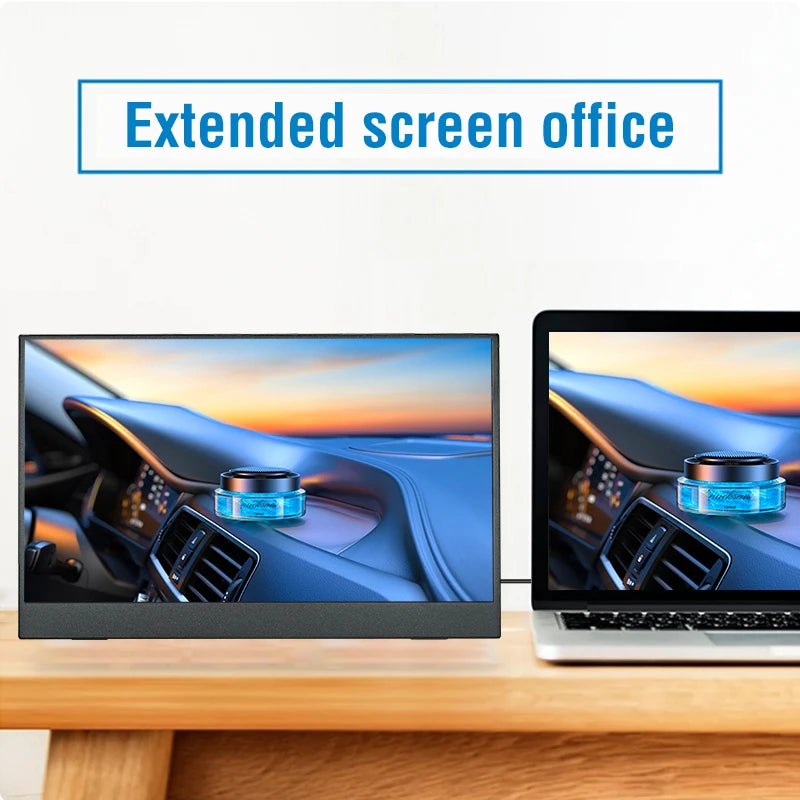
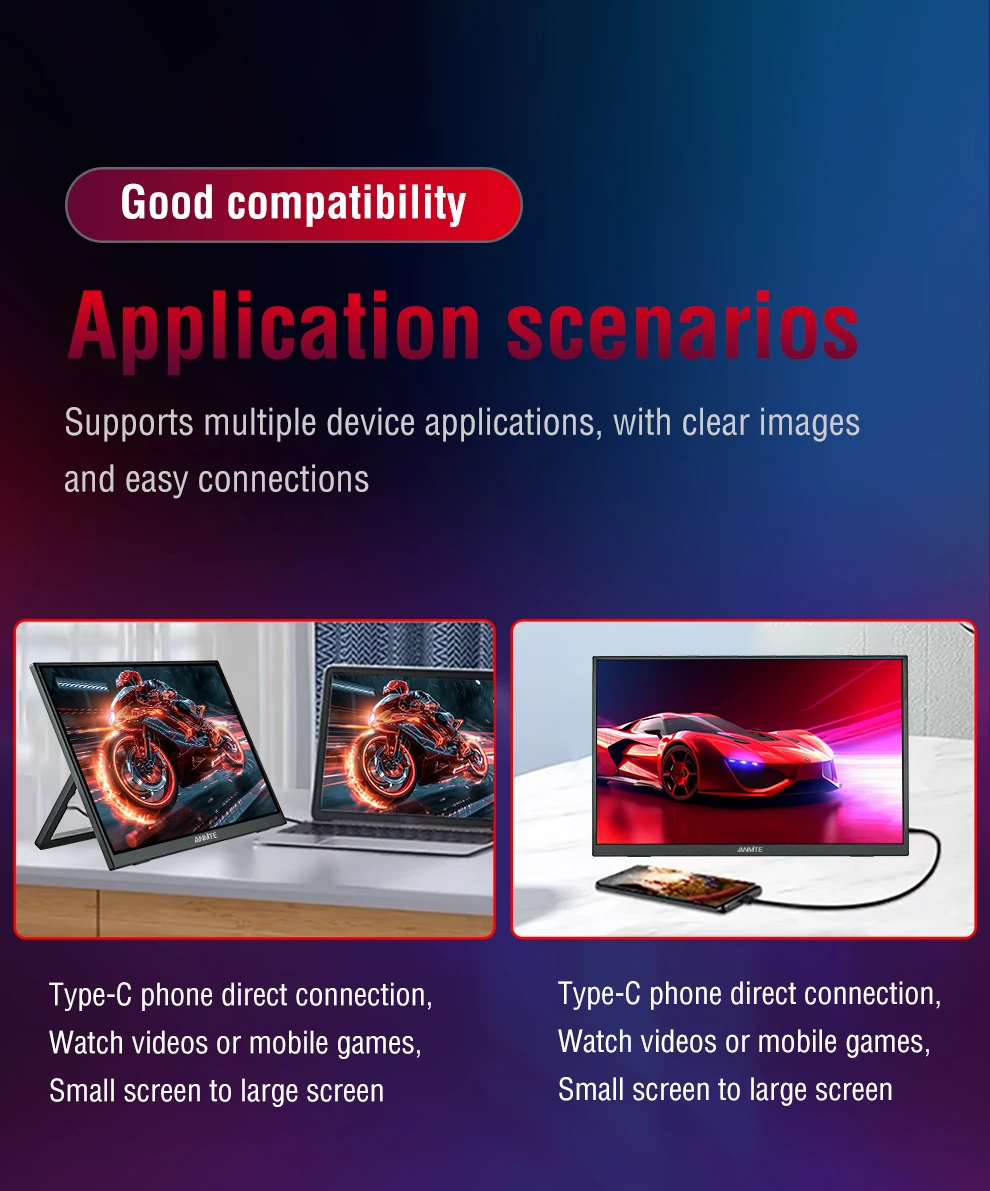
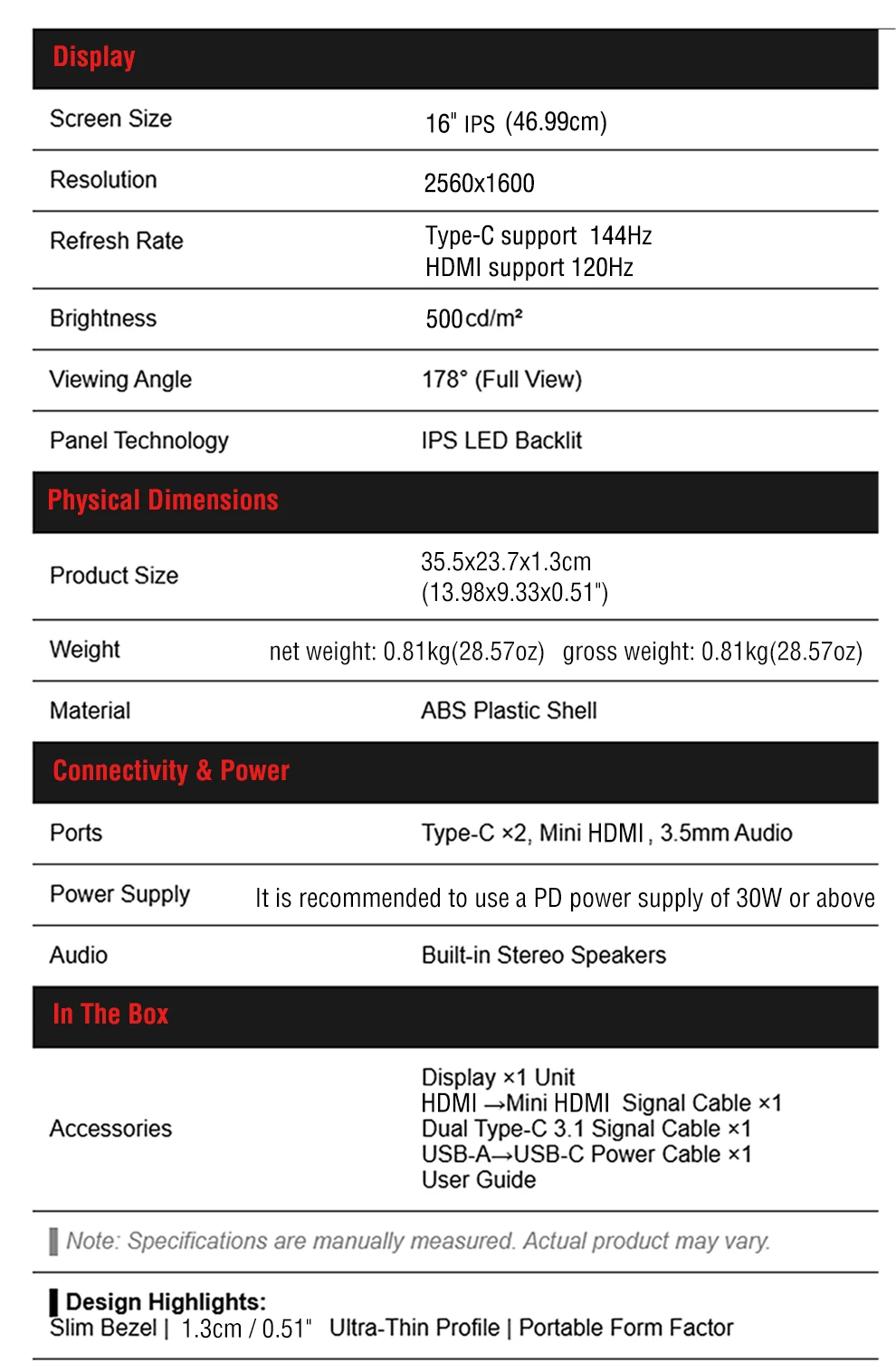
16-inch 2.5K 144Hz portable monitor, 2560*1600 resolution, 100% sRGB, 500Cd/m² brightness, suitable for laptops, mobile phones
16-inch 2.5K 144Hz portable monitor, 2560*1600 resolution, 100% sRGB, 500Cd/m² brightness, suitable for laptops, mobile phones
16-inch QHD 144Hz 500nits Portable Monitor
Thunderbolts Type C 3.1 Version: 144Hz
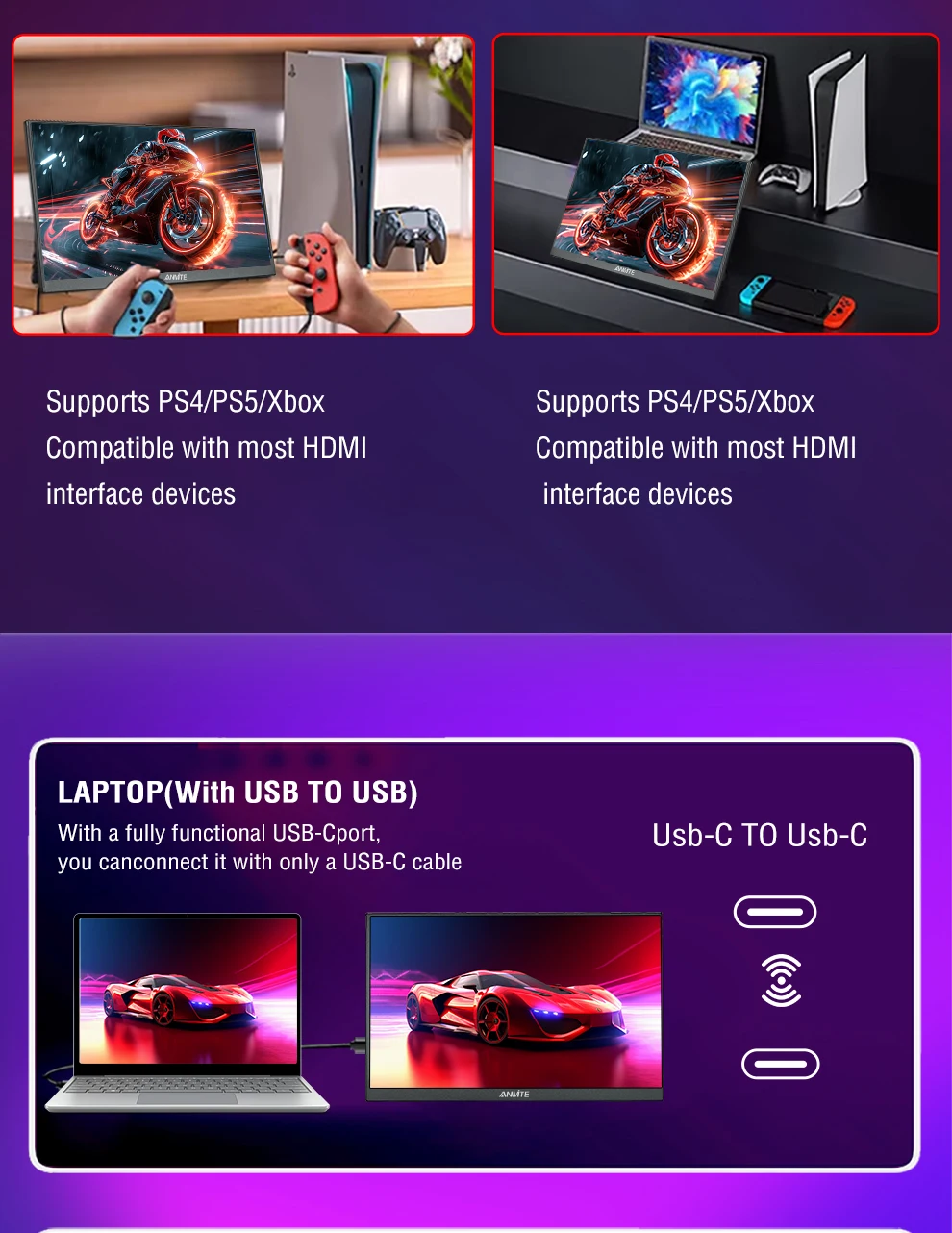
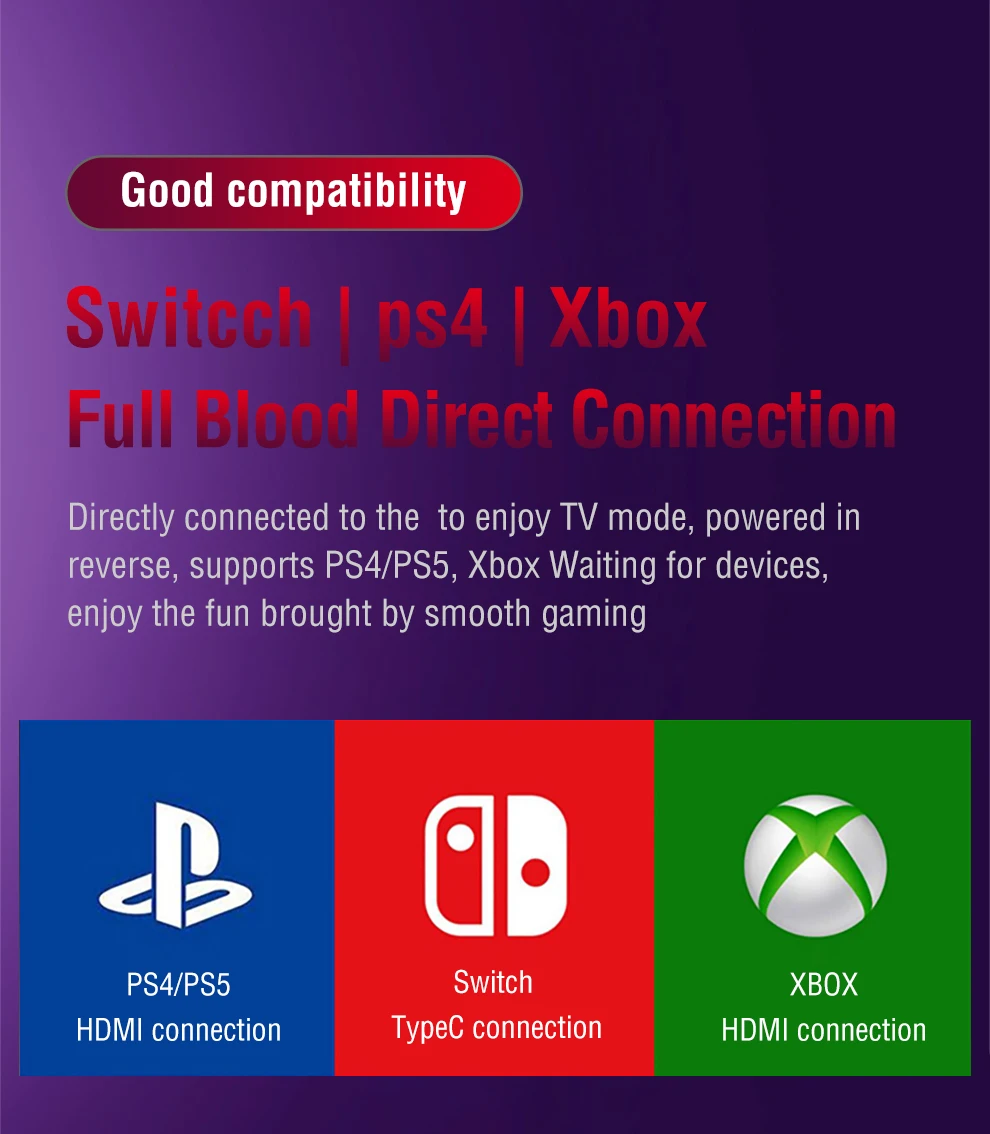
HDMI Compatible Version 2.0: 120Hz
Main Features:
2.5K QHD 16:10 Anmite A160W24H has a QHD resolution of 2560*1600P, a 16-inch IPS panel, and a 16:10 screen ratio, making it a mainstream and stylish monitor in 16:10 laptop design.
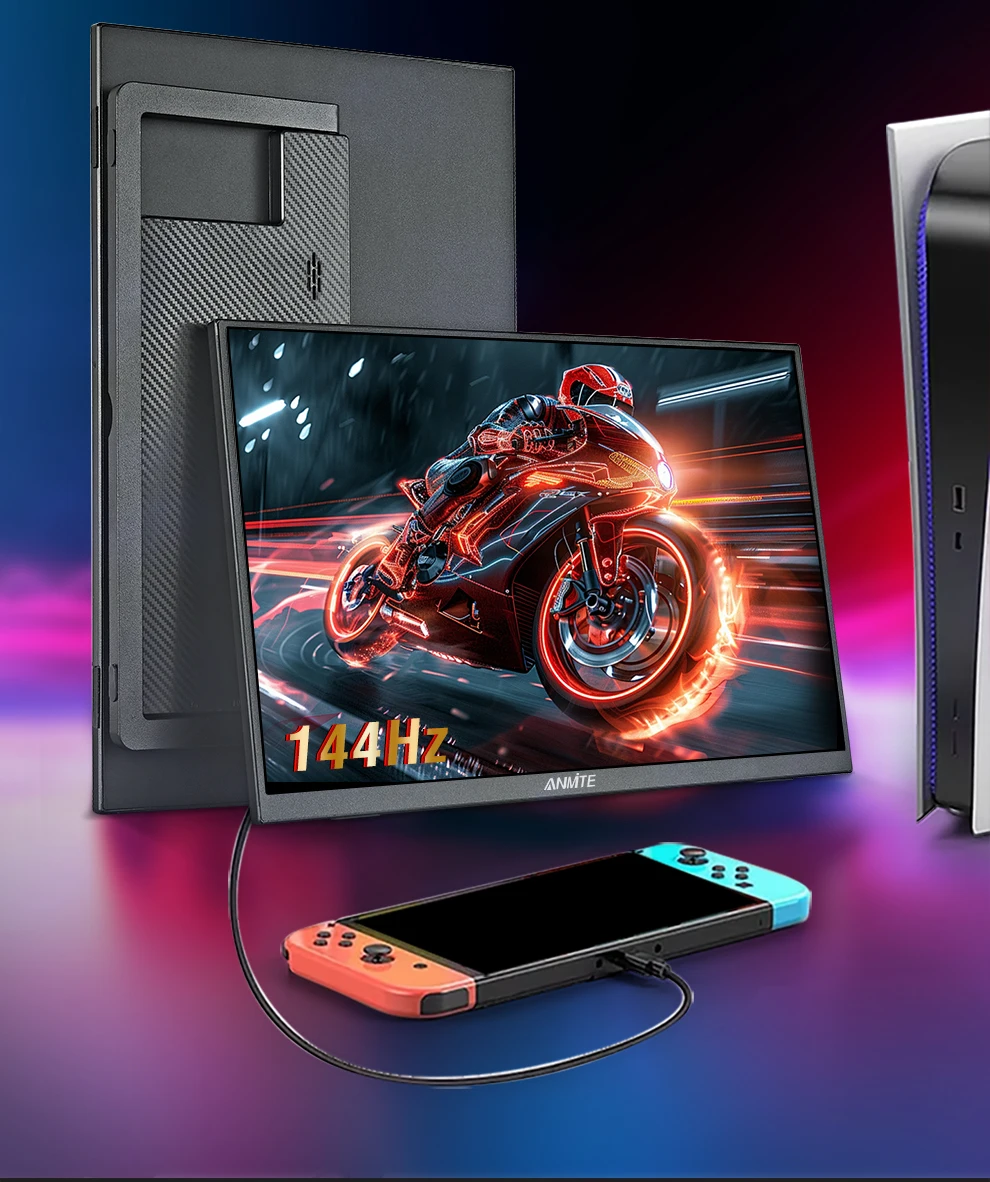
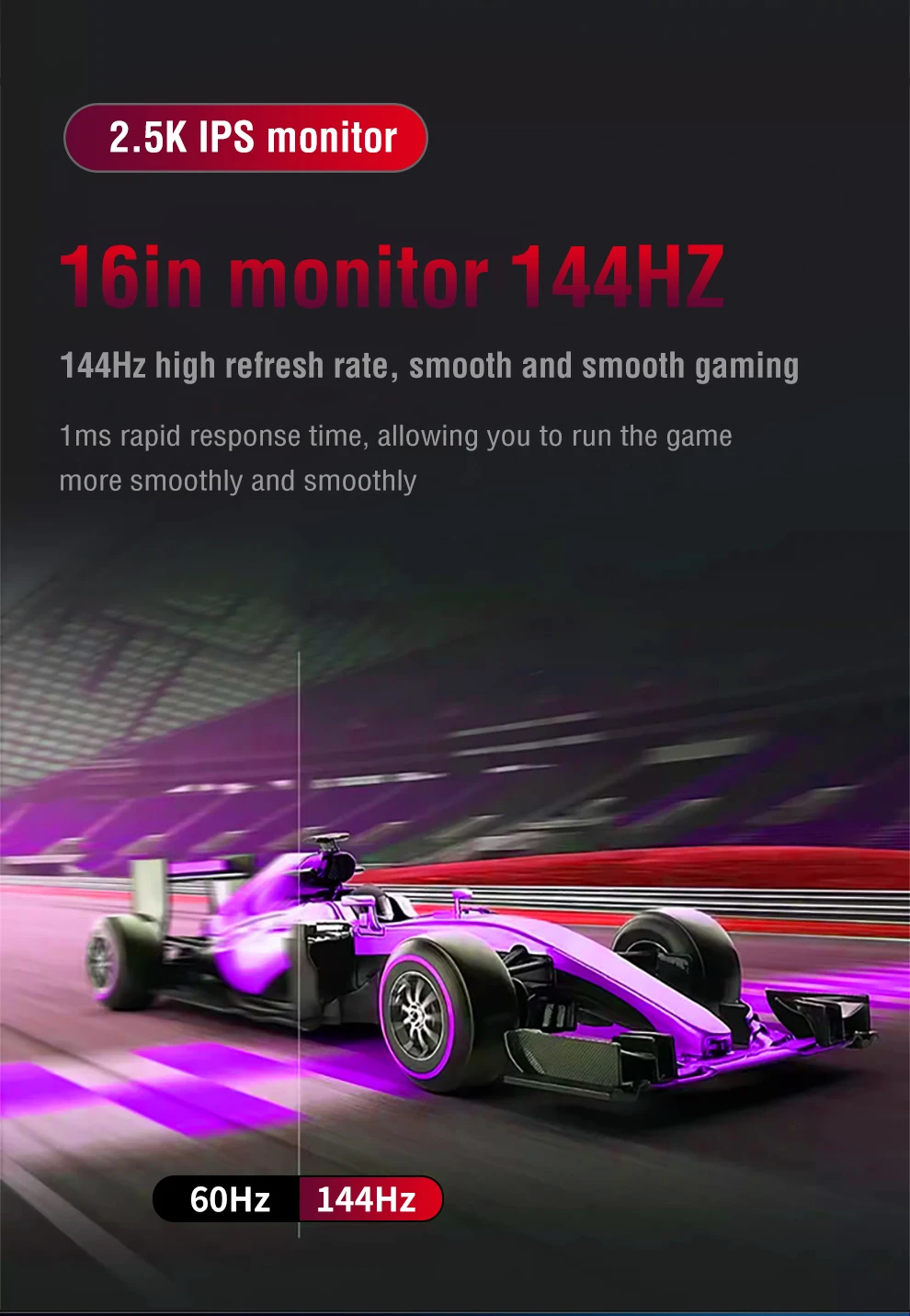
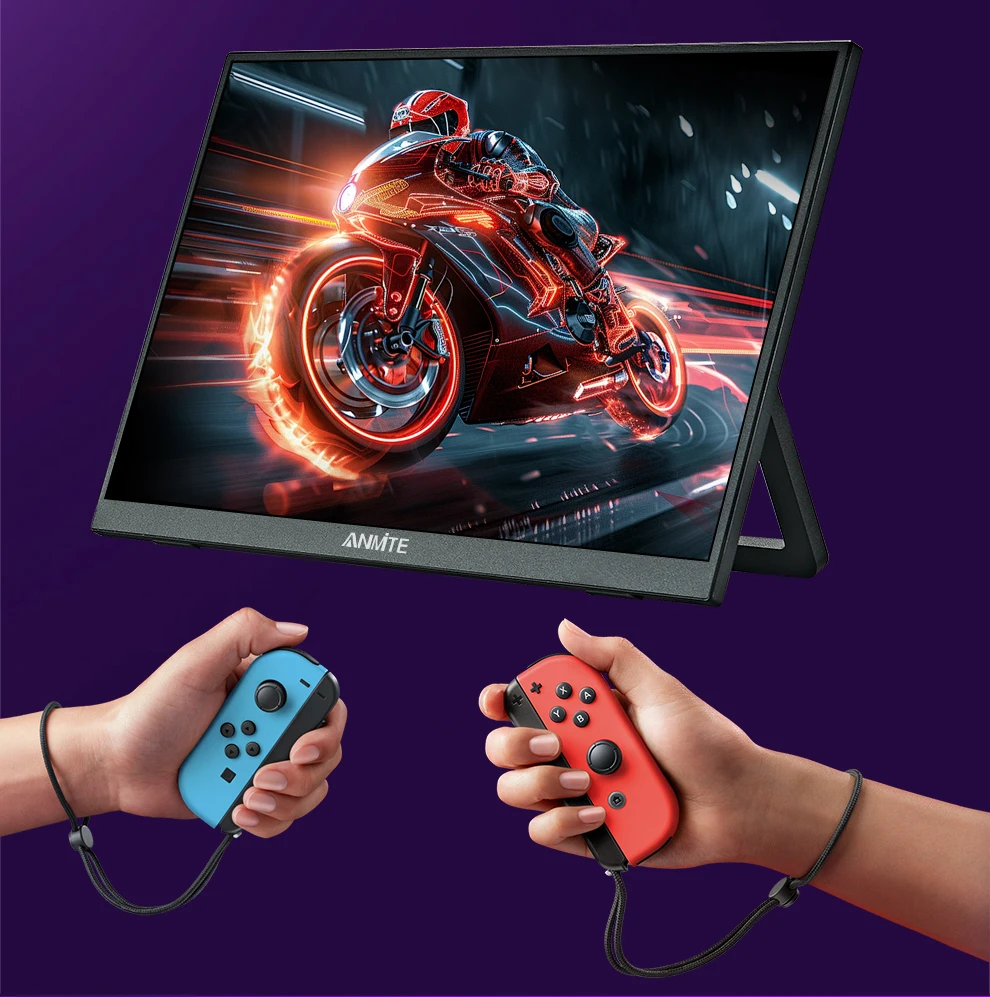
144Hz ANMITE A160W24H supports 144Hz Thunderbolts Type C interface and supports 120Hz high refresh rate for HDMI. Quick response, work more efficiently. Please check if your graphics card supports it.
Rich color gamut] Anmite A160W24H has 500 nits brightness, 1200:1 brightness, 100% sRGB, 76% NTSC color gamut, 79% DCI-P3 color gamut, and uses a 16 billion color 8Bit+FRC color saturation display, bringing realistic color display effects and immersive gaming experience.
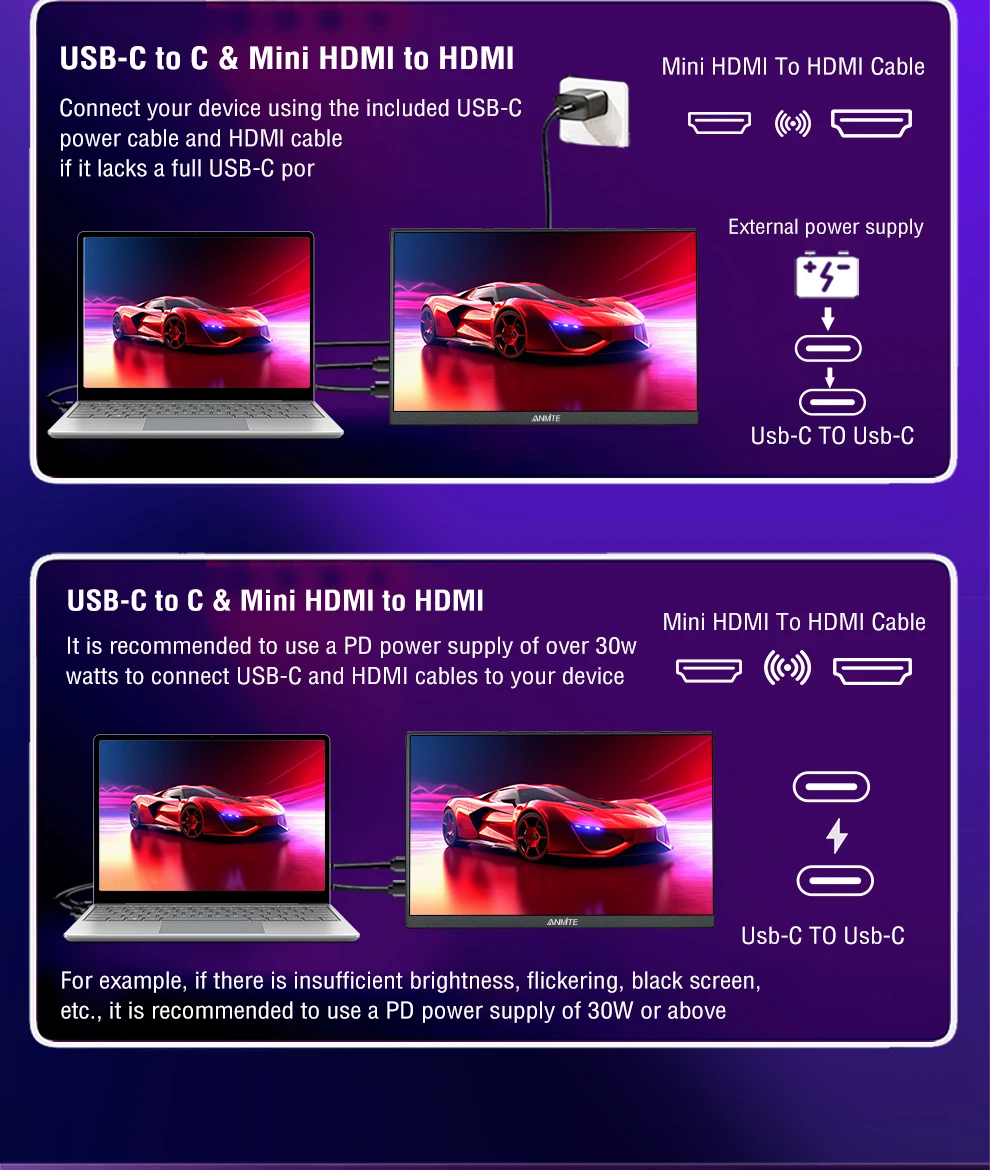
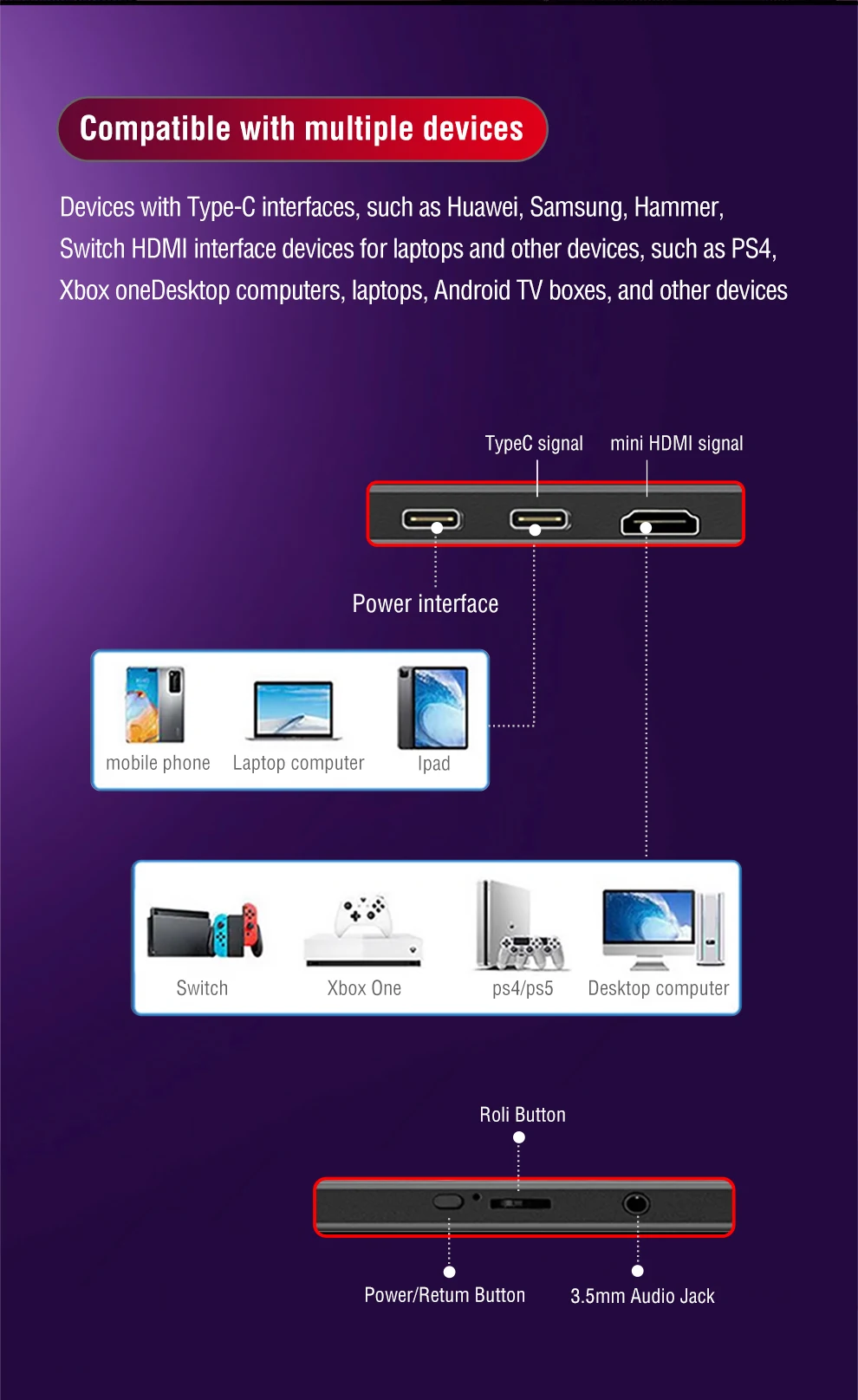
Dual Thunderbolt Type C interface] Anmite A160W24H is equipped with dual Thunderbolt Type C interfaces. All Type C interfaces support power management and mirroring functions, so there is no need to worry about plugging the wrong power interface and burning the motherboard.
Six display modes + OD acceleration] Anmite A160W24H provides six display modes: standard/game/video/text/FPS/RTS, suitable for different scenarios. In addition, the OD acceleration function is more practical during the game.
144Hz depends on the graphics card model of the laptop/PC
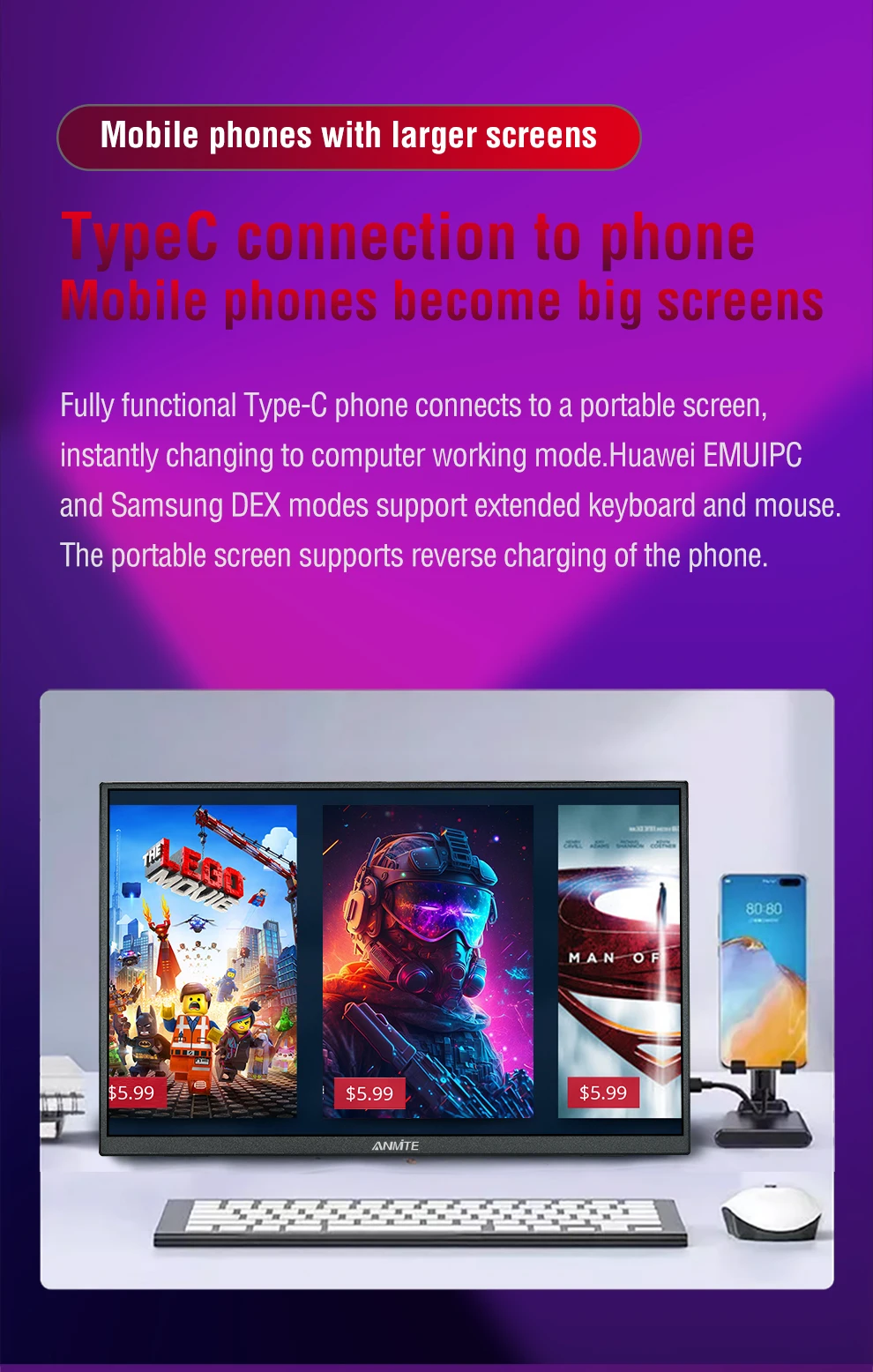
Mobile phones can basically only support 60Hz unless they support 120Hz.
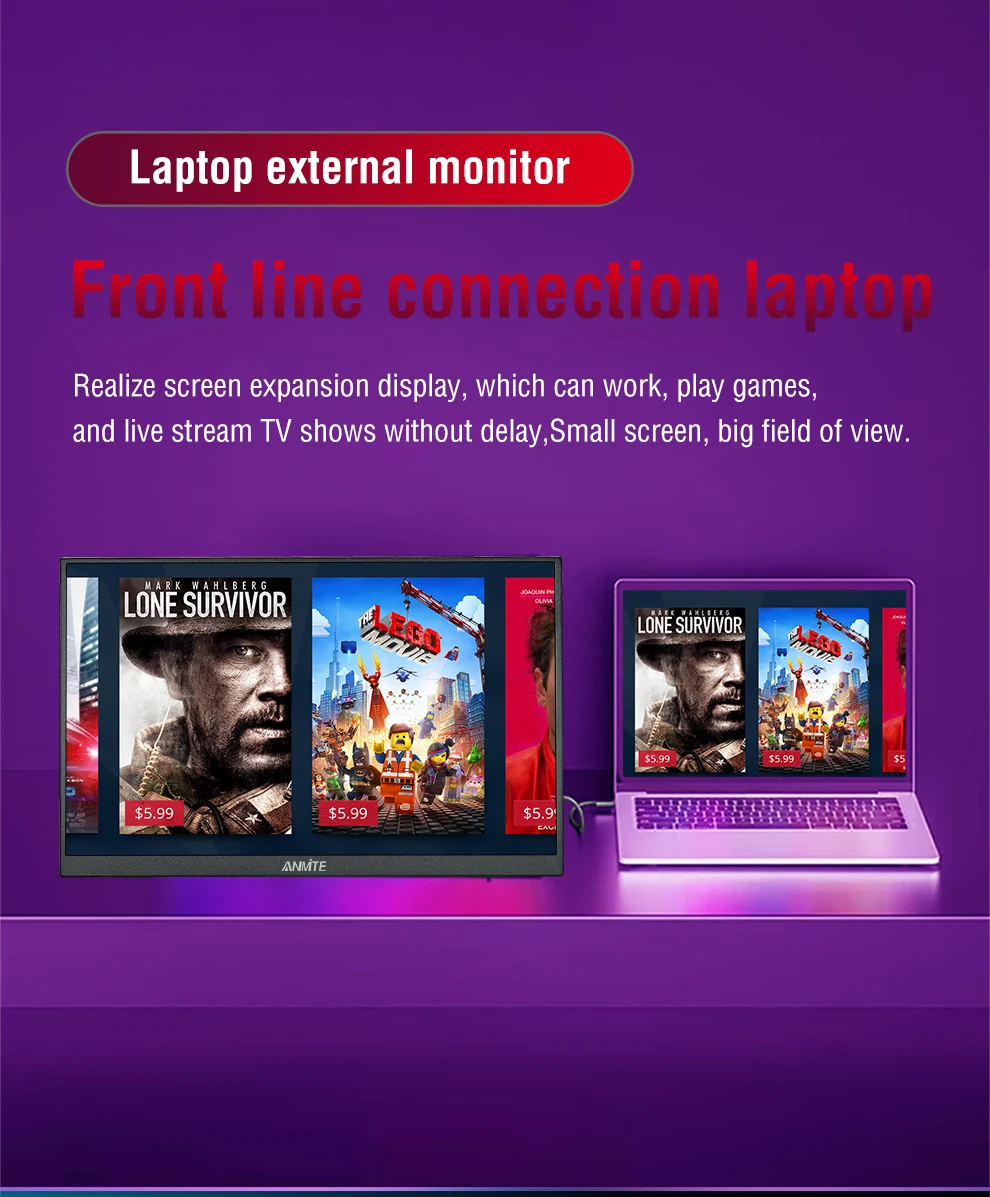
Only some laptops support 144Hz.
How to check the 120/144Hz of a laptop?
Taking Windows system as an example: Display Settings-Advanced Display Settings-Portable Display Properties-List all supported display modes


Monitor FAQ - Common Troubleshooting
Q: The screen displays "blue no signal"
A: If you use a
mobile phone to connect, you need to check whether the phone supports USB3.1
version output, whether it supports DisplayPort alternative mode (DP Alt Mode),
and whether it supports MHL protocol mode. If not, it may be incompatible. You
can use some converters for compatibility, such as: HD adapter cable. If not,
it will display a blue no signal state. Please add a Mini HDMI to HDMI cable
for signal transmission. If you use HDMI connection, you need to check whether
your graphics card is connected correctly. As long as it displays blue no
signal, it proves that there is no problem with the monitor, but there is no
signal input. If there is a discrete graphics card, you must connect the
discrete graphics card.
Q: Do I need to connect the power supply when using
it?
A: The laptop uses
a TPYE-C connection cable and does not need to be connected to the power
supply. If the power supply is insufficient, the screen will flicker and USB
power supply is required. If you use HDMI connection, you must use USB power
supply. If the screen flickers, it may be insufficient power supply.
Q: What causes the screen flickering?
A: The screen
flickering is caused by insufficient output or power supply of your device. It
is recommended to use a 30W or higher PD power supply.
Q: Does it support vertical screen:
A: The monitor
itself does not have the vertical screen function, so it does not support
vertical screen. These functions can only be set on the mobile phone. The
monitor only provides display functions. Unless you set the mobile phone to computer
mode or set the vertical screen on the computer, the monitor itself does not
support vertical screen.
Q: Does it support touch function?
A: This product is
divided into non-touch version. Please choose the corresponding model according
to your needs to place an order to avoid purchasing the wrong model.
Q: My monitor cannot be turned on.
A: Please check
whether the monitor and your device are in power-on mode. Make sure the cable
is connected correctly. Connect other available devices or cables to check.
If you use the
USB-C interface connection: You can use the USB-C cable to achieve power supply
and signal transmission (one line for two purposes, also known as one line
pass) and get power directly from the laptop. If you use the HDMI interface connection,
you must use a two-wire connection solution. The HDMI cable is only responsible
for video signal transmission. You need an additional power supply solution.
You can choose one of the following methods:
A1: Powered by a
power adapter connected to the socket (30W and above PD power is recommended)
A2: Powered from
the computer USB through a separate USB cable (If the computer USB power supply
is insufficient, false alarms such as insufficient brightness, flickering,
black screen, etc. may occur. It is recommended to use a 30W and above PD power
supply).
Q: Why is my screen flickering?
A: Please check if
the connection is loose. If there is no problem with the connection, the screen
flickering is caused by insufficient output of your device or power supply. It
is recommended to use a 30W or higher PD power supply. Please connect the adapter
and use it again, or try to replace new cables and devices.
Q: Why does the monitor make an electric current or
rustling sound?
A: Please confirm
the source of the noise. If it is a connection noise, please re-plug the
interface or replace a new cable. If it is the sound of the adapter or speaker,
it may be due to the quality problem of the power adapter.
Q: Does this computer monitor support VESA wall
mounting?
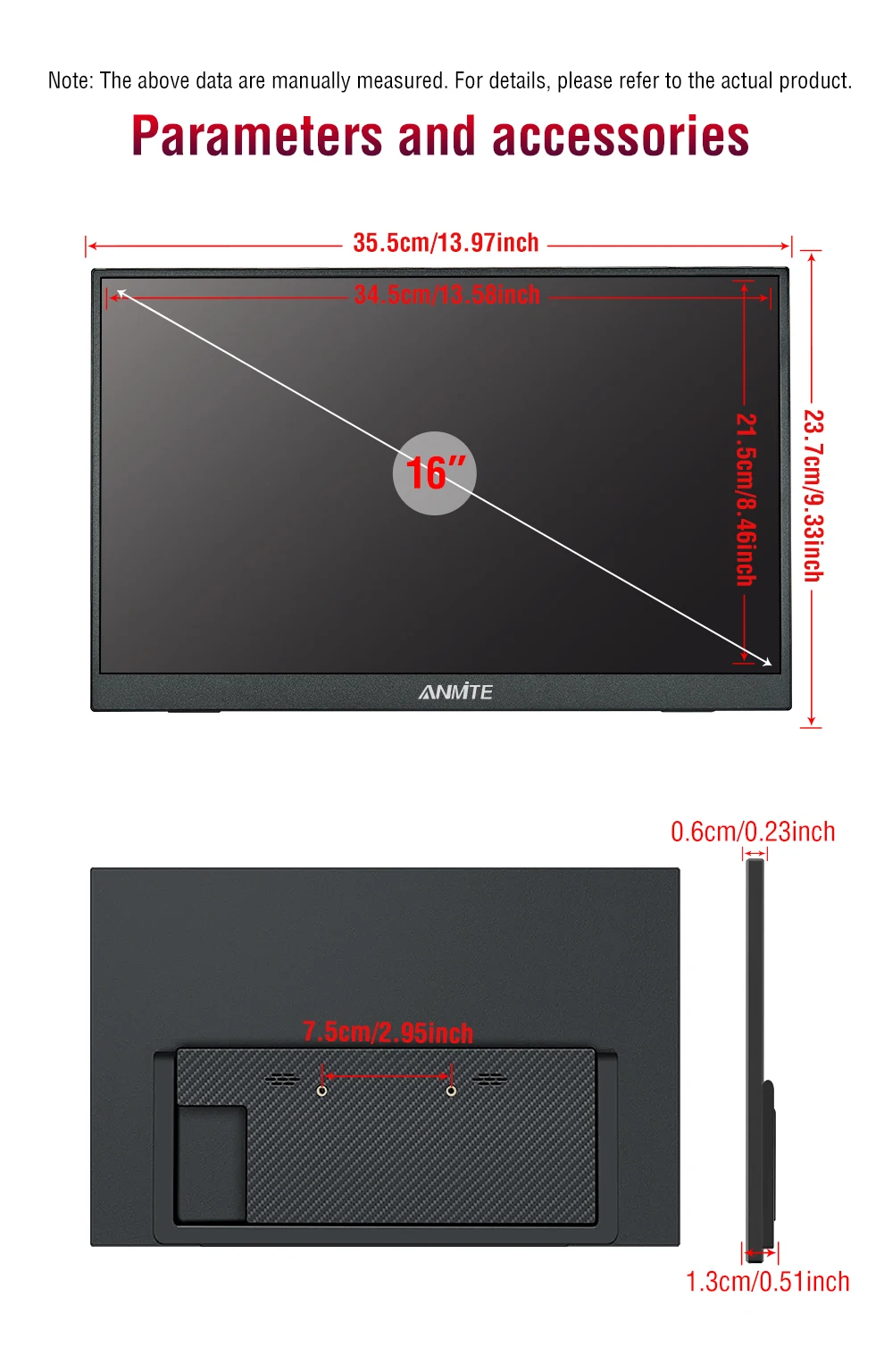
A: Support VESA
wall mounting
Q: Is there a speaker?
A: Yes, with
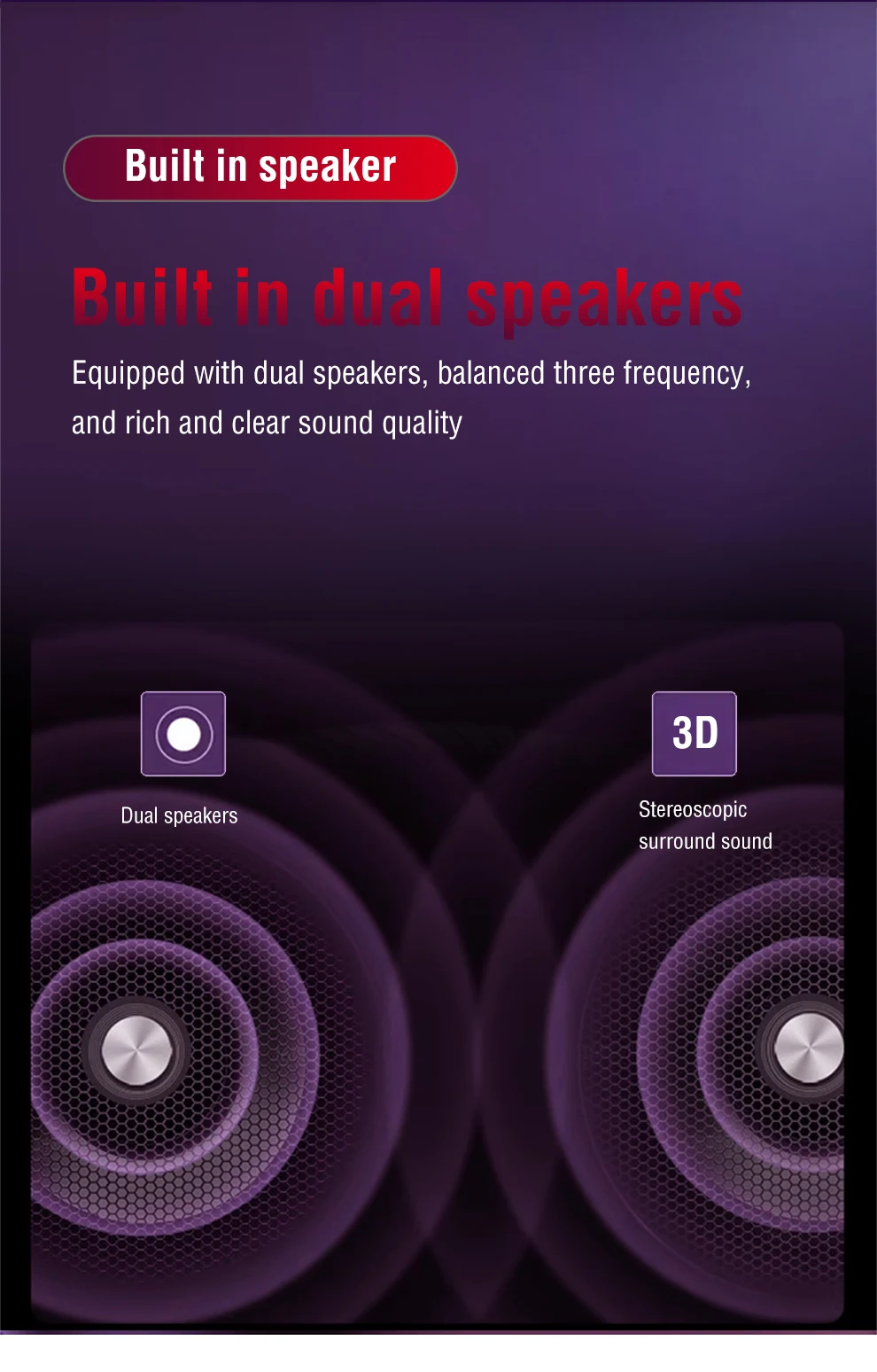
built-in speakers.
Q: Does it support Apple phones?
A: Basically not.
However, after testing, iPhone 15 PRO and higher versions may be able to cast
screens, but they do not support vertical screen and touch functions.
Product features
Product features
Materials and care
Materials and care
Merchandising tips
Merchandising tips